
How to set up Fixed Bundle with Infinite Variants on your store
Fixed Bundle with Infinite Variants is a Mix & Match template that creates a fixed-bundle-style product page while supporting many variant combinations.
Use this setup when shoppers should buy a fixed set of products, but each product has variants such as shade, color, size, or tone. Instead of creating every possible Shopify variant combination, FoxSell uses the Fixed Bundle with Infinite Variants template and the FoxSell Shade product page block.
Video walkthrough: Watch the setup guide
Before you start
Make sure the products you want to include in the bundle already exist in Shopify, including the variants shoppers should choose from.
This template works best for fixed sets like cosmetics, skincare, apparel, or kits where customers choose one variant for each included product.
Step 1: Choose the Fixed Bundle with Infinite Variants template
- Open FoxSell Bundles from your Shopify admin.
- Click Create a New Bundle.
- Choose Mix & Match.
- Select Fixed Bundle with Infinite Variants.
- Review the product page and checkout preview.
- Click Use This Template.
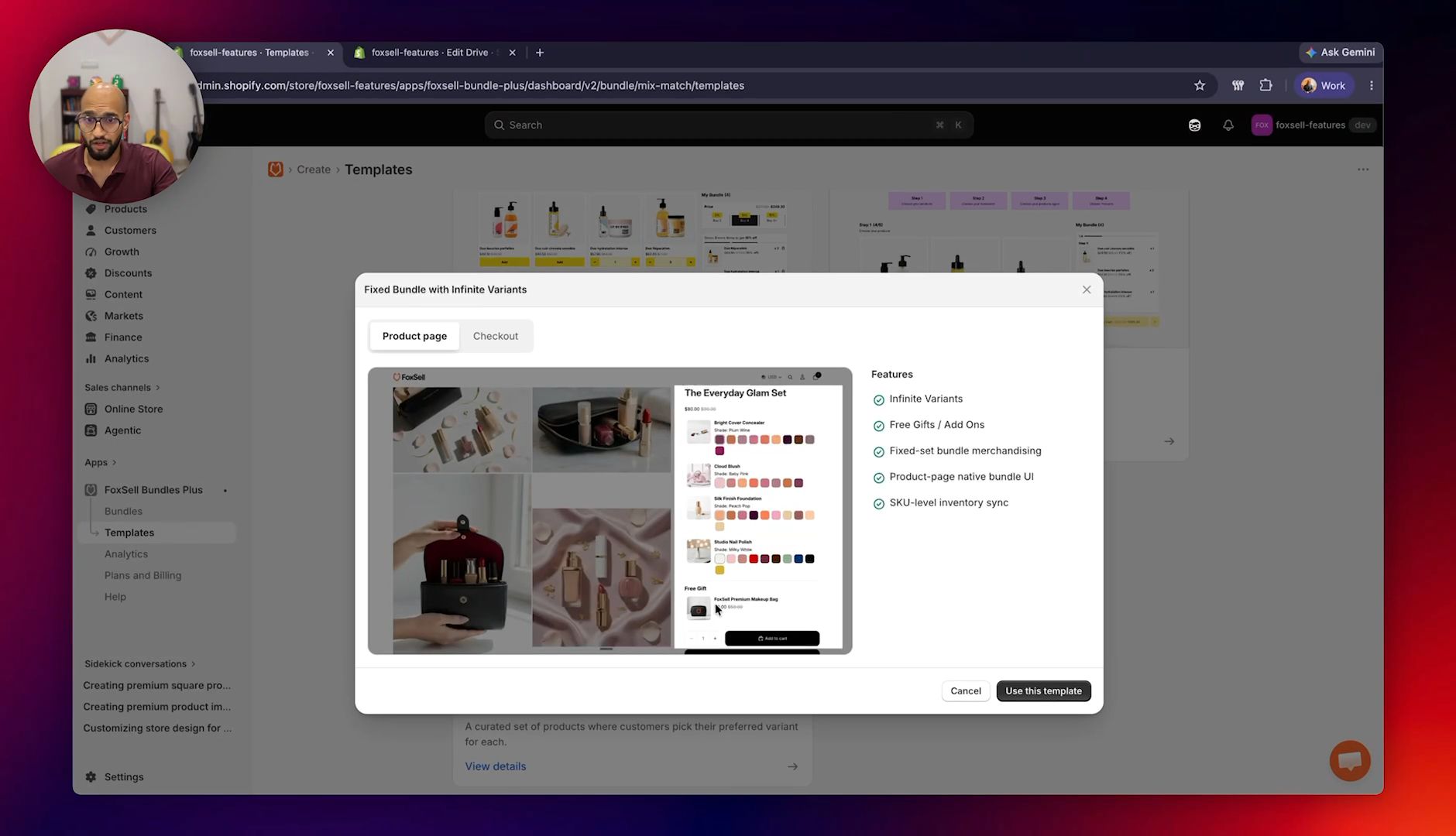
Do not choose the regular Fixed Bundles option for this setup. The infinite-variants experience is created through the Mix & Match template.
Step 2: Install the template files on your theme
After you choose the template, FoxSell prompts you to install the required theme files.
- Click Install Template.
- Select the Shopify theme where you want to use the bundle.
- Click Install.
- Wait for the setup to complete.
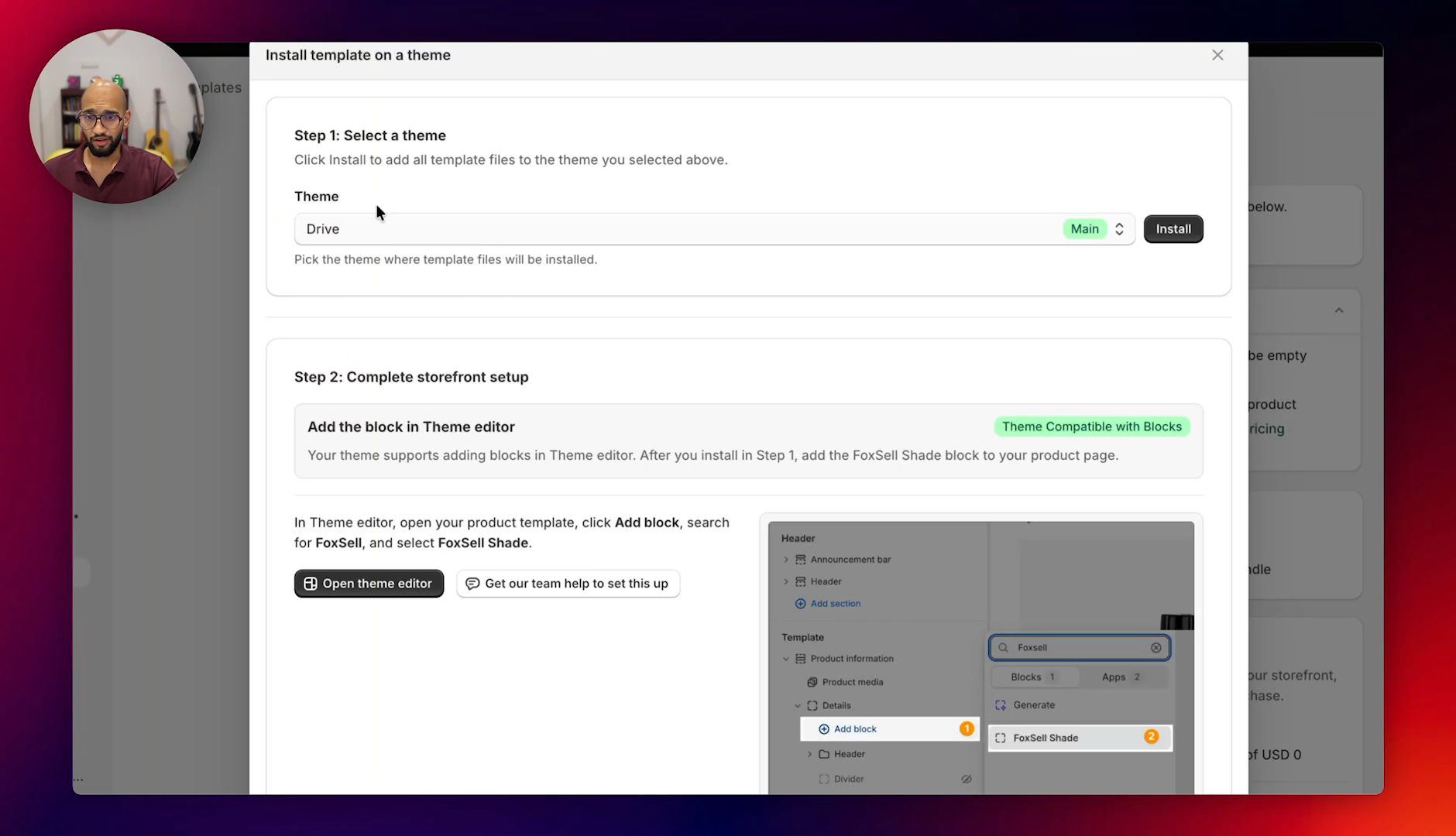
Some themes support the required theme blocks automatically. If your theme shows a message asking you to contact support, message us from the in-app chat and we will help set it up.
Step 3: Add products, add-ons, and pricing
- Enter a bundle name and bundle details.
- Select the products included in the fixed bundle.
- Review the variants that are included for each product.
- Optional: add an Always included item, such as a free gift.
- Optional: add an Add-on item that customers can add or remove on the product page.
- Choose the pricing type:
- Fixed price
- Discount percentage
- Review the bundle summary.
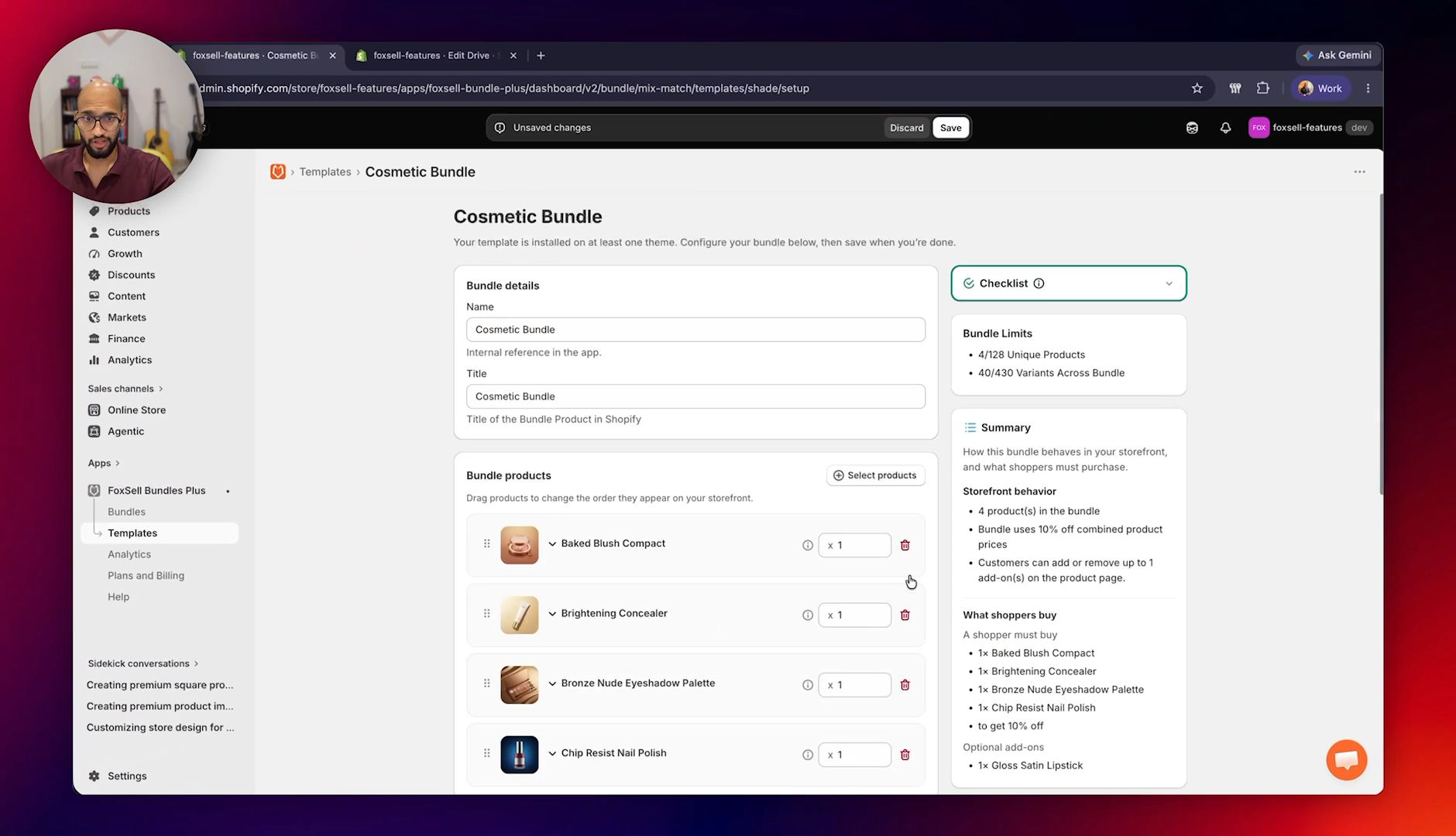
For example, you can include four cosmetic products, add a makeup bag as an always-included gift, and offer a lipstick as an optional add-on.
Step 4: Save the bundle and open the Shopify product
- Click Save.
- After the bundle is saved, FoxSell creates a Shopify product for the bundle.
- Click View Bundle in Shopify Admin.
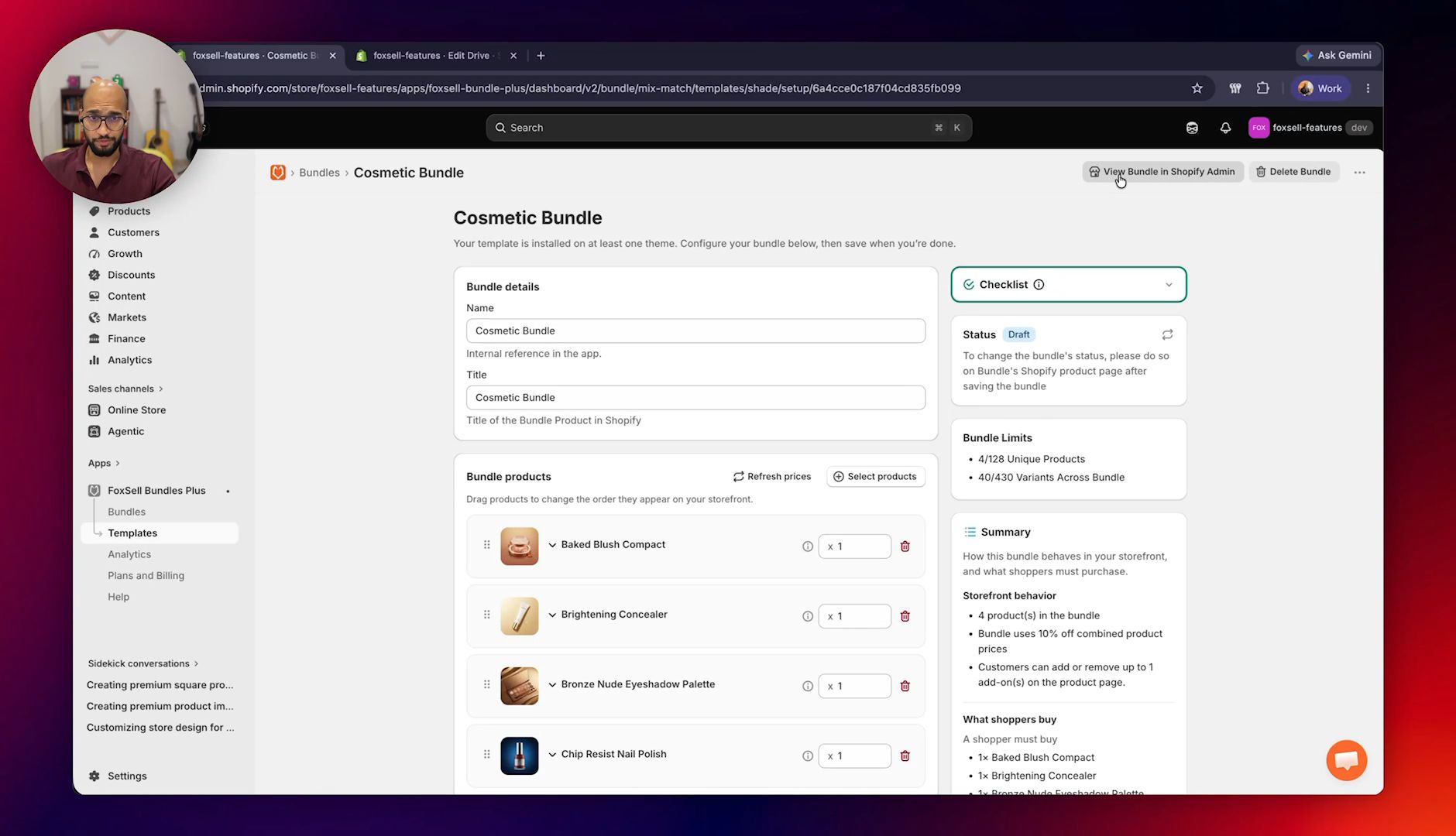
The generated Shopify product acts as the storefront landing page for this bundle.
Step 5: Create a dedicated Shopify product template
Because this is a block-based template, create a product template for this bundle in Shopify.
- In Shopify admin, go to Online Store > Themes.
- Click Customize on the theme you installed the template on.
- Open the template selector.
- Create a new product template.
- Name it something clear, such as FoxSell Shade.
- Create the template.
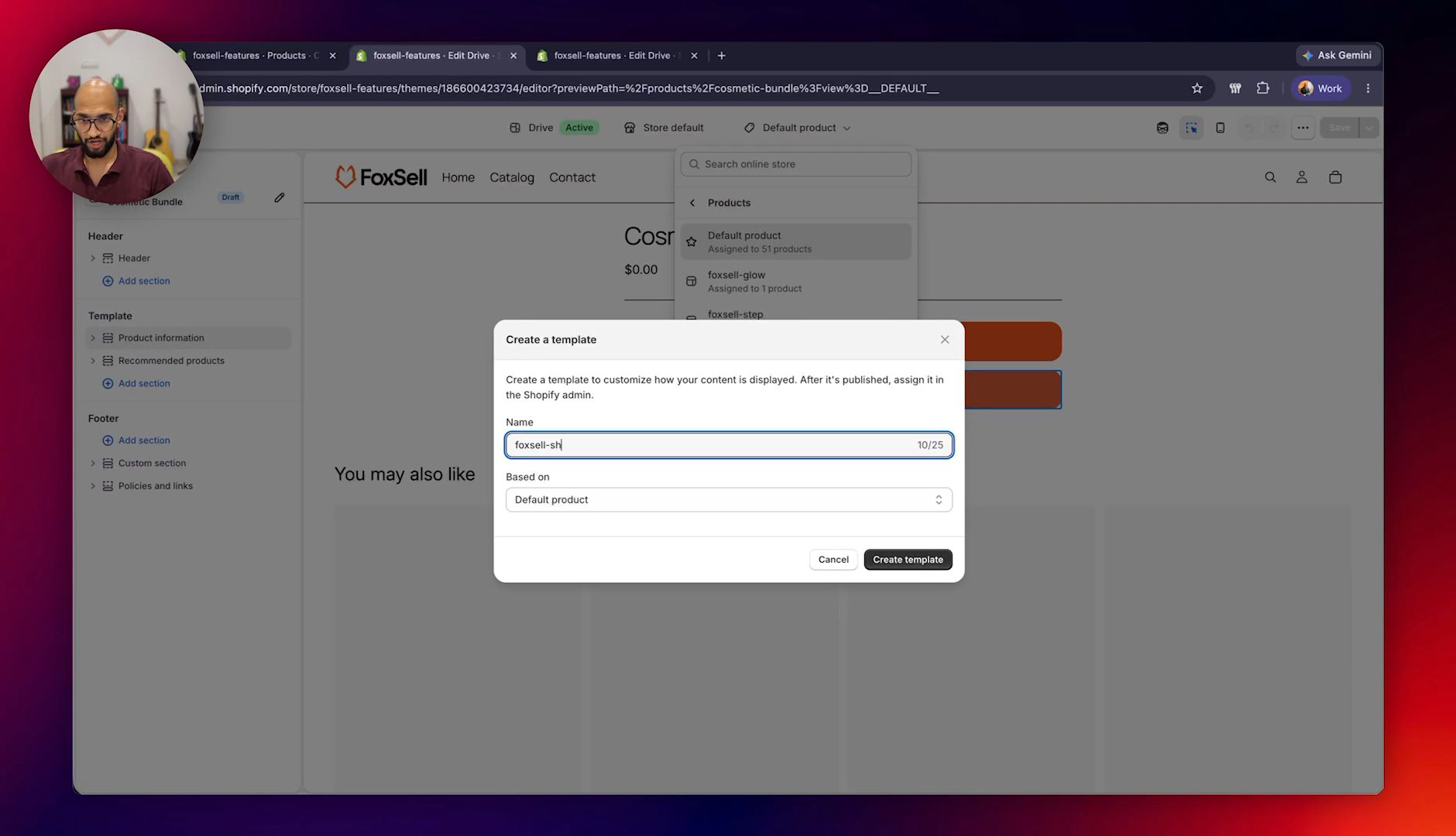
Using a dedicated template keeps this bundle page separate from your normal product pages.
Step 6: Add the FoxSell Shade block
- In the Shopify theme editor, open the product template you created.
- In the Product information area, click Add block.
- Search for FoxSell Shade.
- Add the FoxSell Shade block.
- Move the block where you want the selector to appear, usually near the price and buy buttons.
- Save the theme.
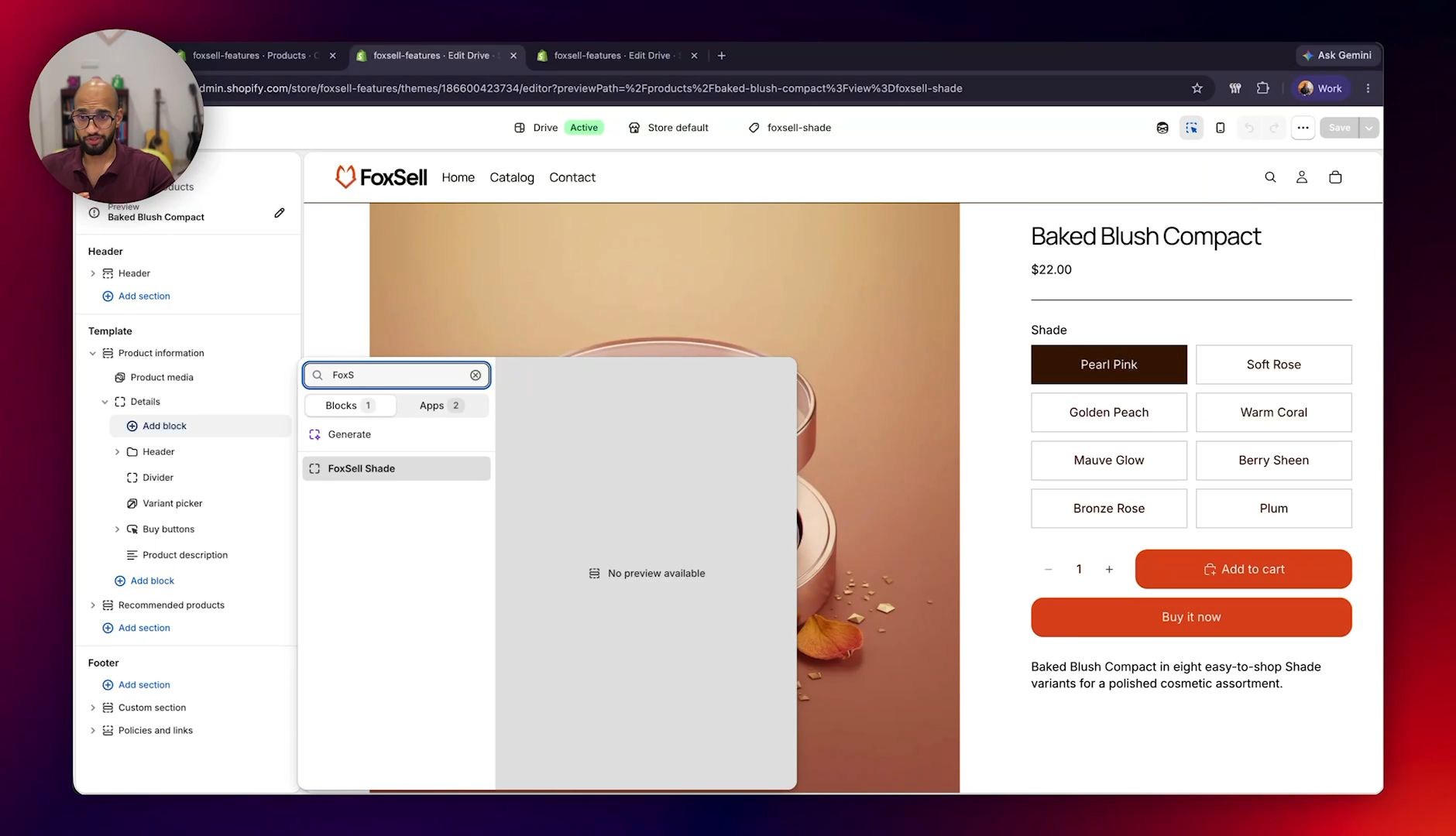
If your theme does not let you add app blocks in the product information area, contact our support team and we will help set it up.
Step 7: Assign the template to the bundle product
- Go back to the bundle product in Shopify admin.
- Set the product status to Active.
- Add product images if needed.
- In the Theme template setting, choose the product template you created.
- Click Save.
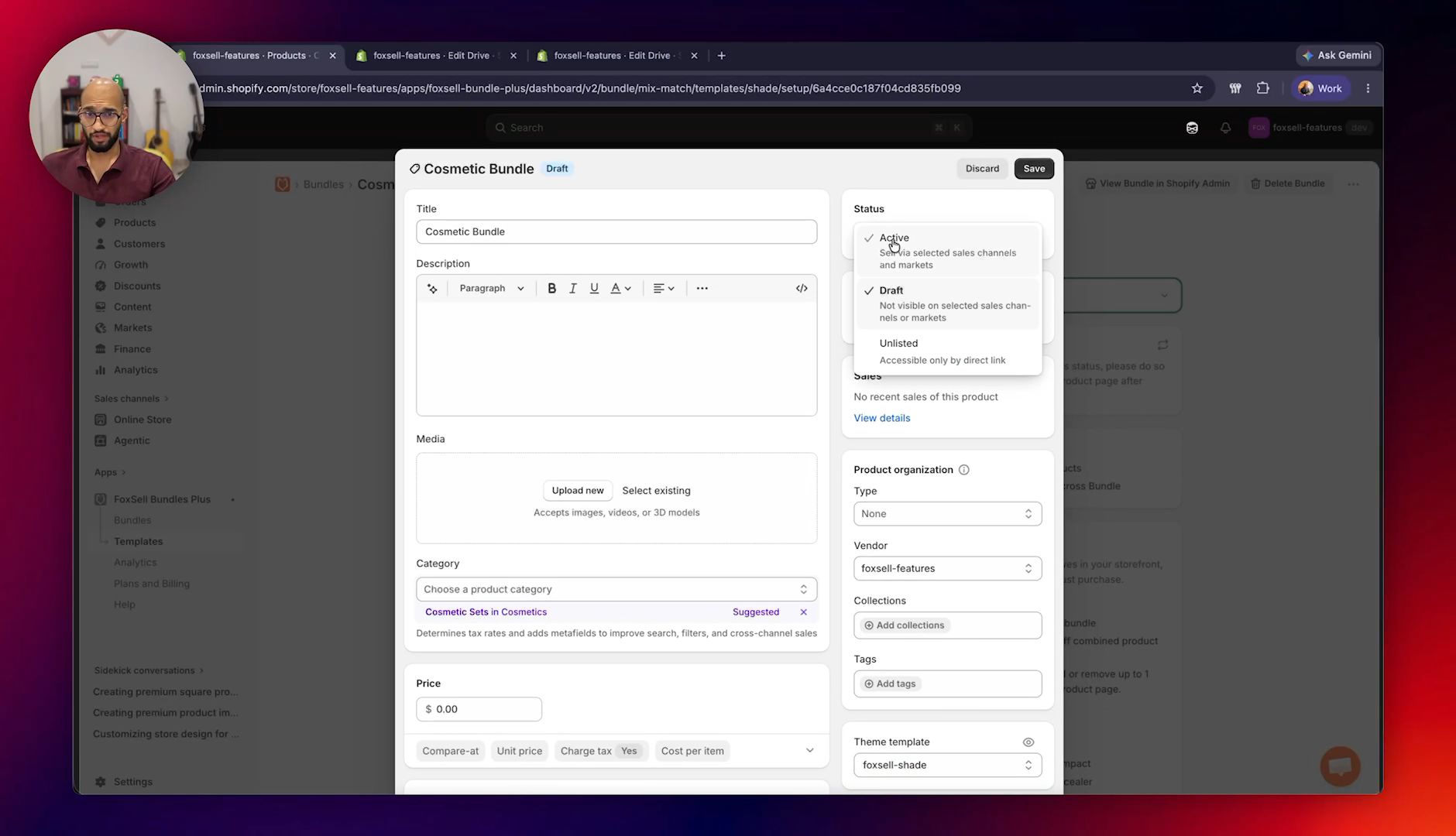
Step 8: Test the storefront, cart, and checkout
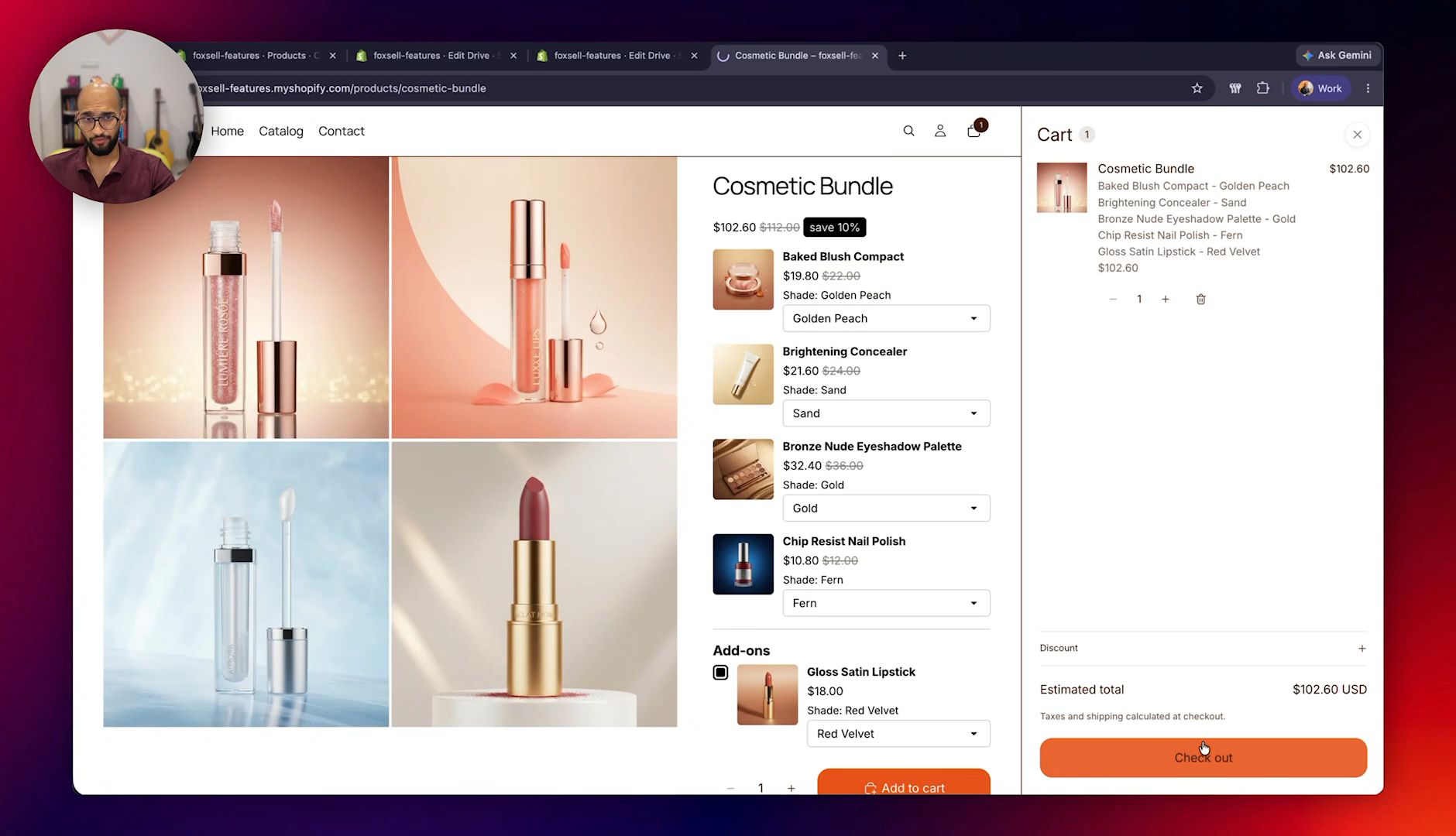
Open the bundle product on your storefront and confirm:
- The FoxSell bundle selector appears on the product page.
- Customers can choose variants such as shades or colors.
- Optional add-ons can be selected or skipped.
- The bundle adds to cart correctly.
- Cart and checkout show the bundled items correctly.
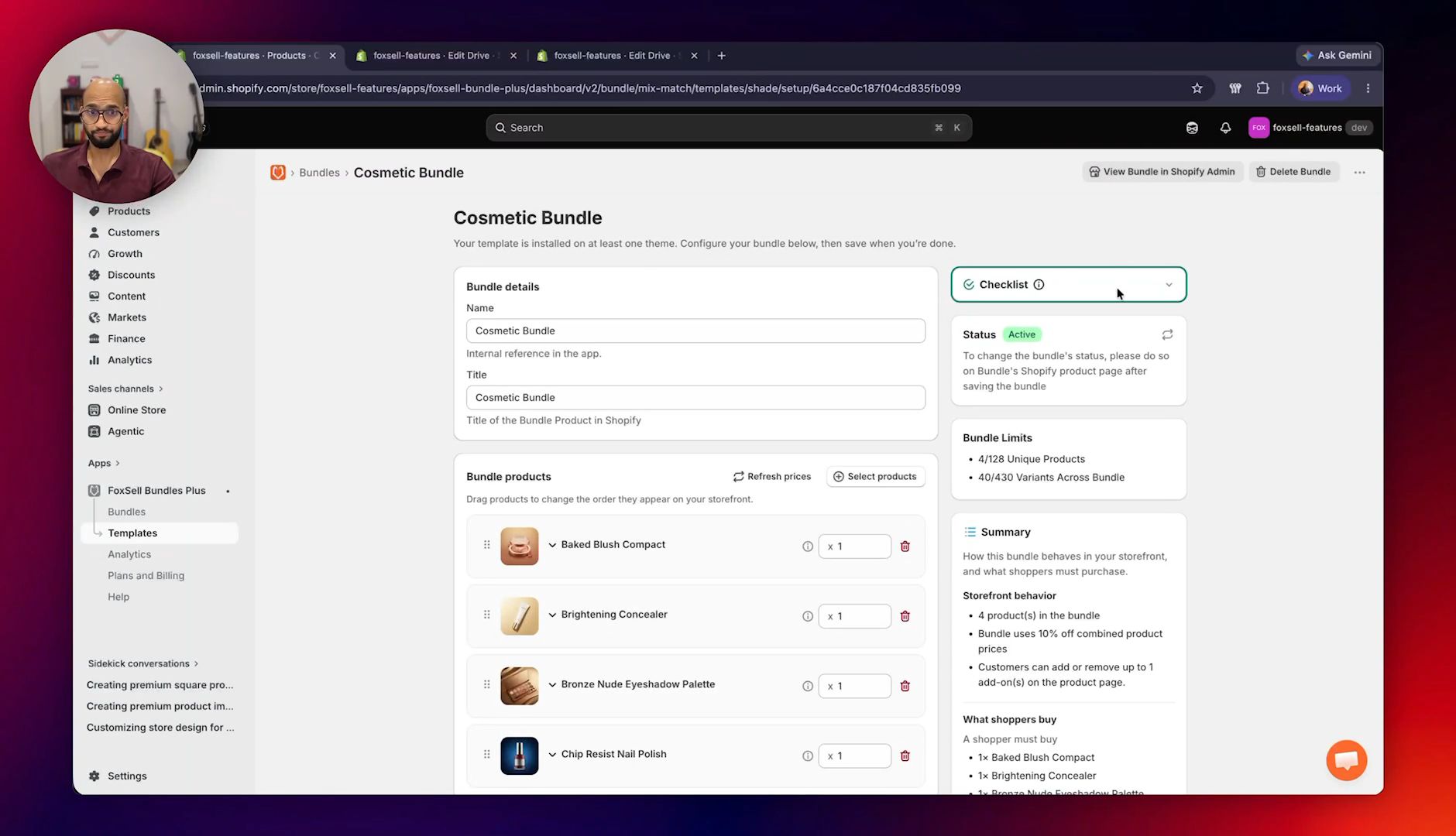
Optional: Customize swatches and selector settings
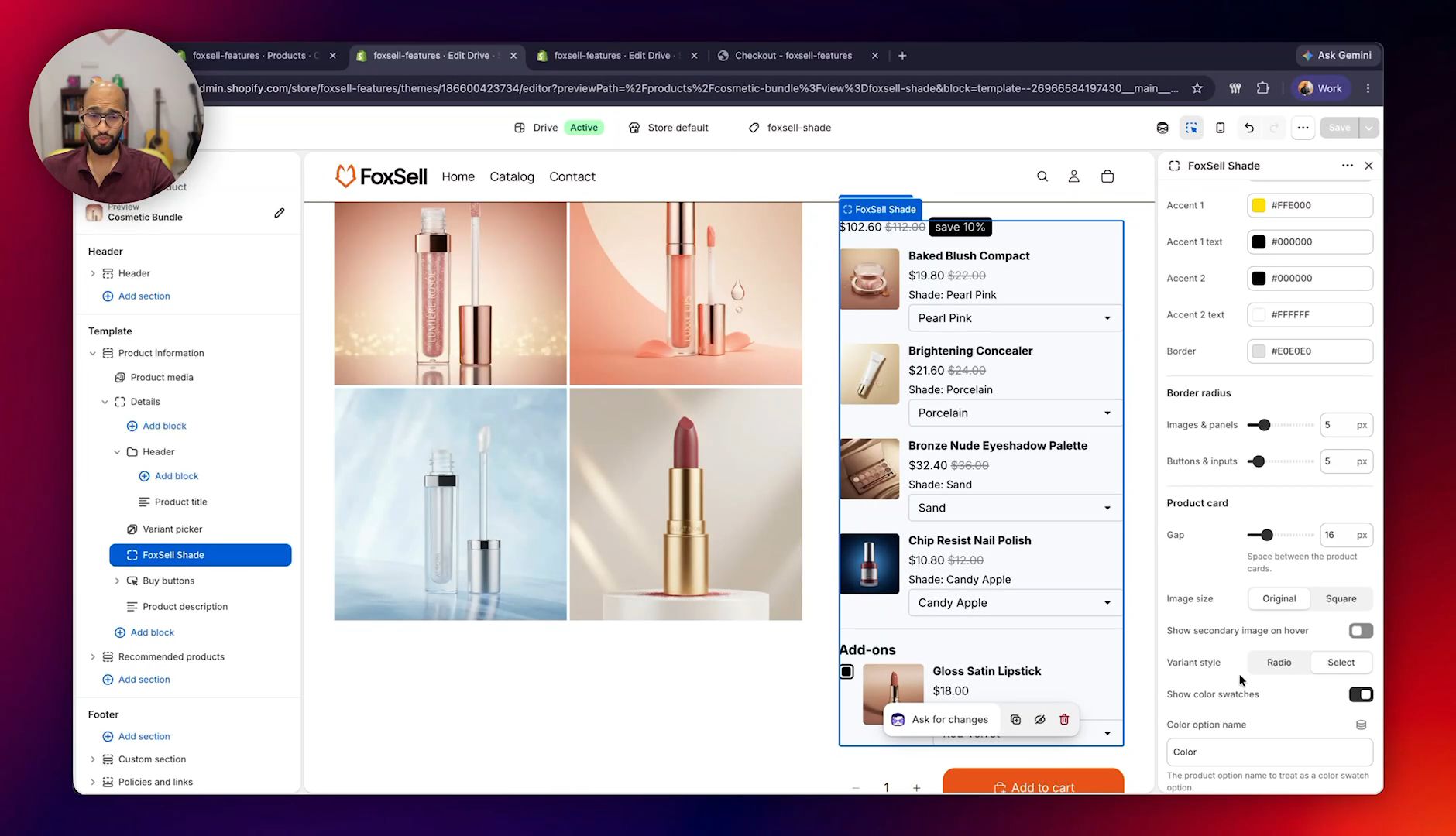
You can customize the FoxSell Shade block from the Shopify theme editor.
Common settings include:
- Font size
- Top and bottom padding
- Variant selector style
- Automatic swatches from Shopify color metafields
- Manual color swatches
- Swatch size
- Whether an add-on should be selected by default
- Display text used in the selector
For manual swatches, enter the option name and each color value with its hex code.
If you face any issues, especially on a theme that does not support app blocks, message us from the in-app chat or email support@foxsell.app. We can help get the setup completed.
Updated on: 07/07/2026
Thank you!