
How to set up Tiered Bundle Builder on your store
Tiered Bundle Builder is a Mix & Match template for buy-more-save-more bundle pages. Shoppers choose a box size, add products, and receive the pricing you configure for that tier.
Video walkthrough: Watch the setup guide
Before you start
Make sure your store has access to the newer FoxSell dashboard experience.
This template works best when you want shoppers to build a box and unlock a better offer as they add more products, such as Box of 2, Box of 4, and Box of 6+.
Step 1: Choose the Tiered Bundle Builder template
- Open FoxSell Bundles from your Shopify admin.
- Click Create a New Bundle.
- Choose Mix & Match.
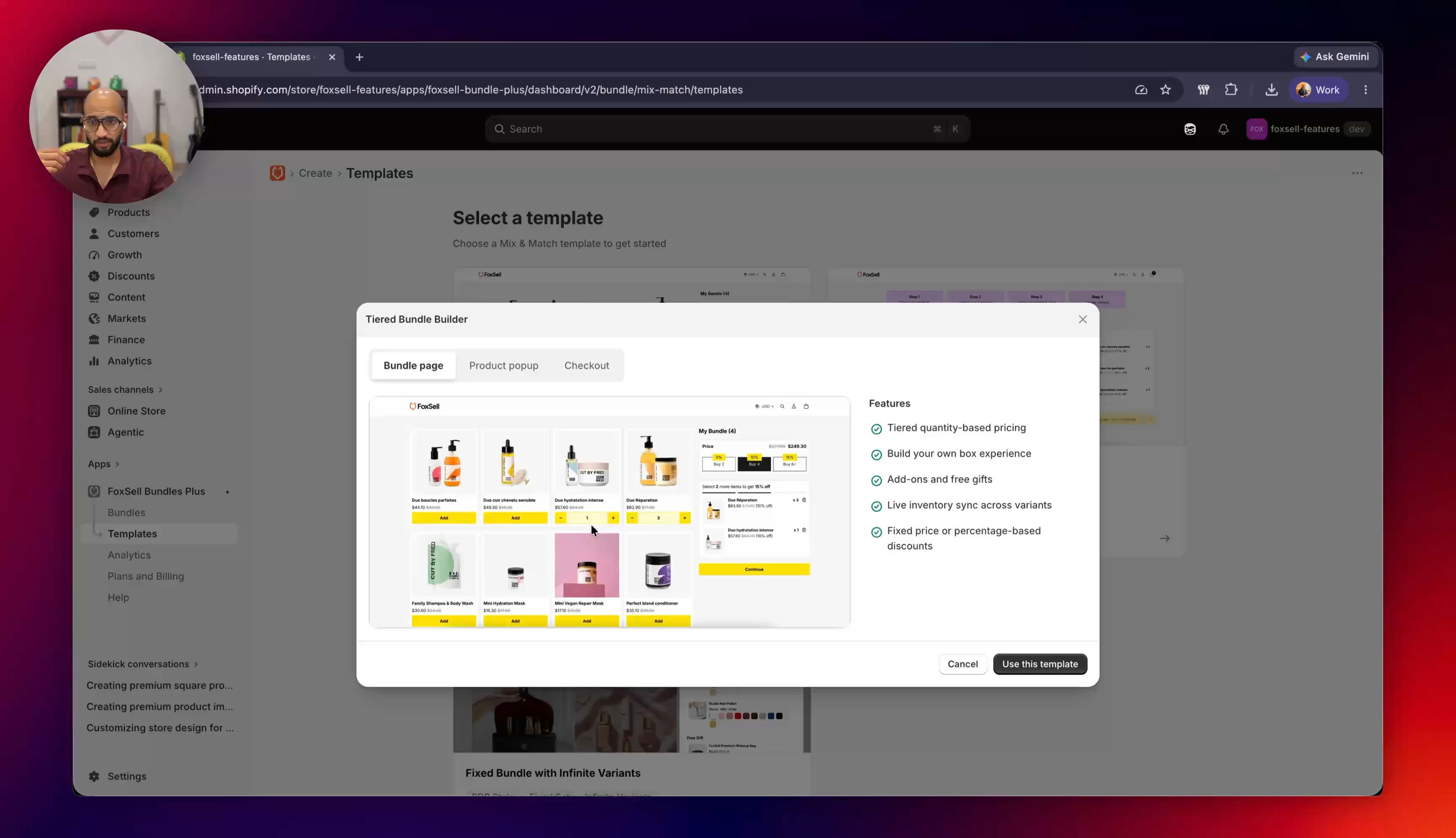
- Select Tiered Bundle Builder.
- Review the product page and checkout preview.
- Click Use This Template.
Step 2: Install the template files on your theme
After you choose the template, FoxSell prompts you to install the required theme files.
- Click Install Template.
- Select the Shopify theme where you want to use the bundle.
- Click Install.
- Wait for the setup to complete.
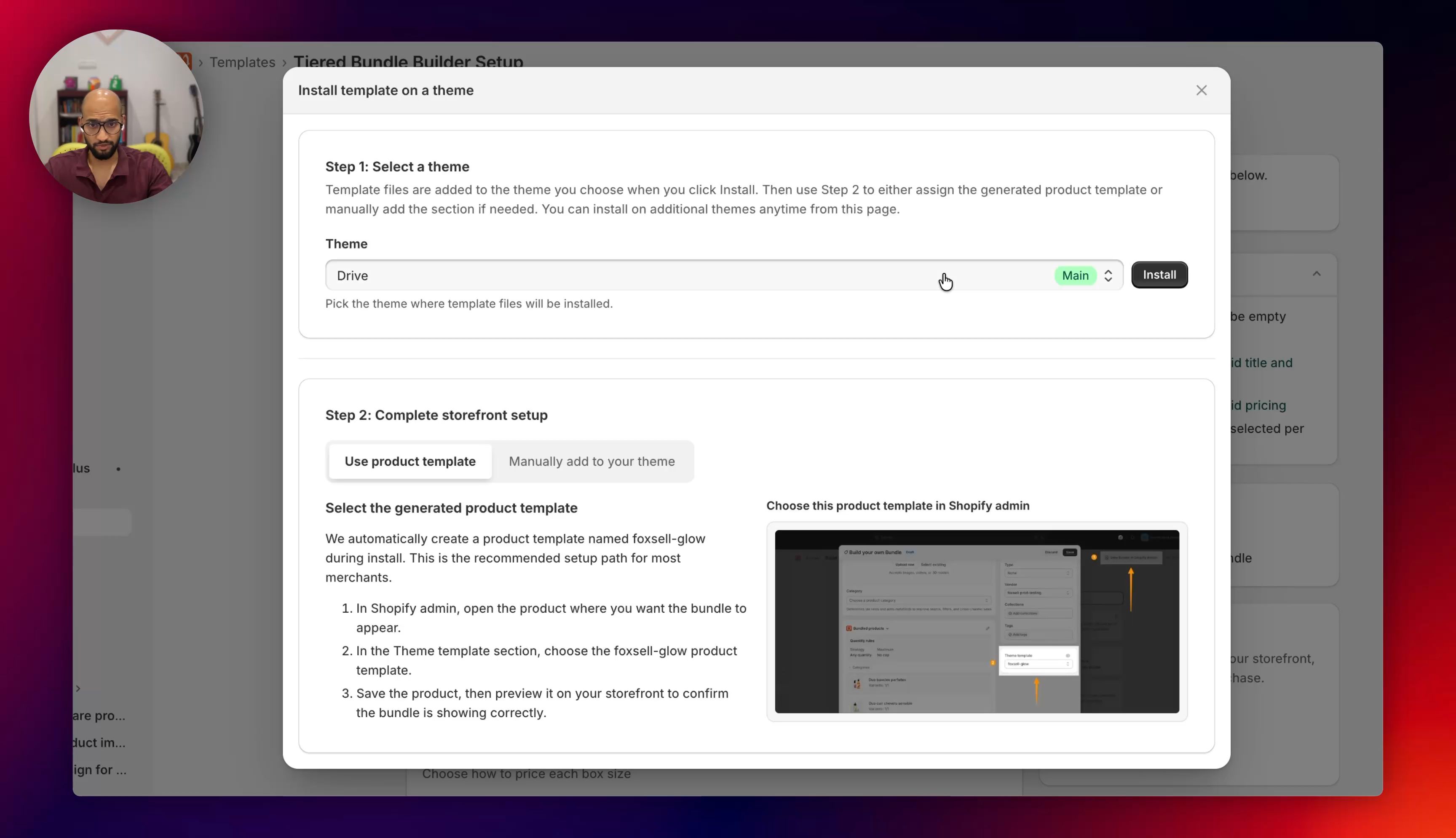
You can install the template on a development theme first if you want to test before using it on your live theme.
Step 3: Add bundle details, tiers, and pricing
- Enter the bundle name and storefront title.
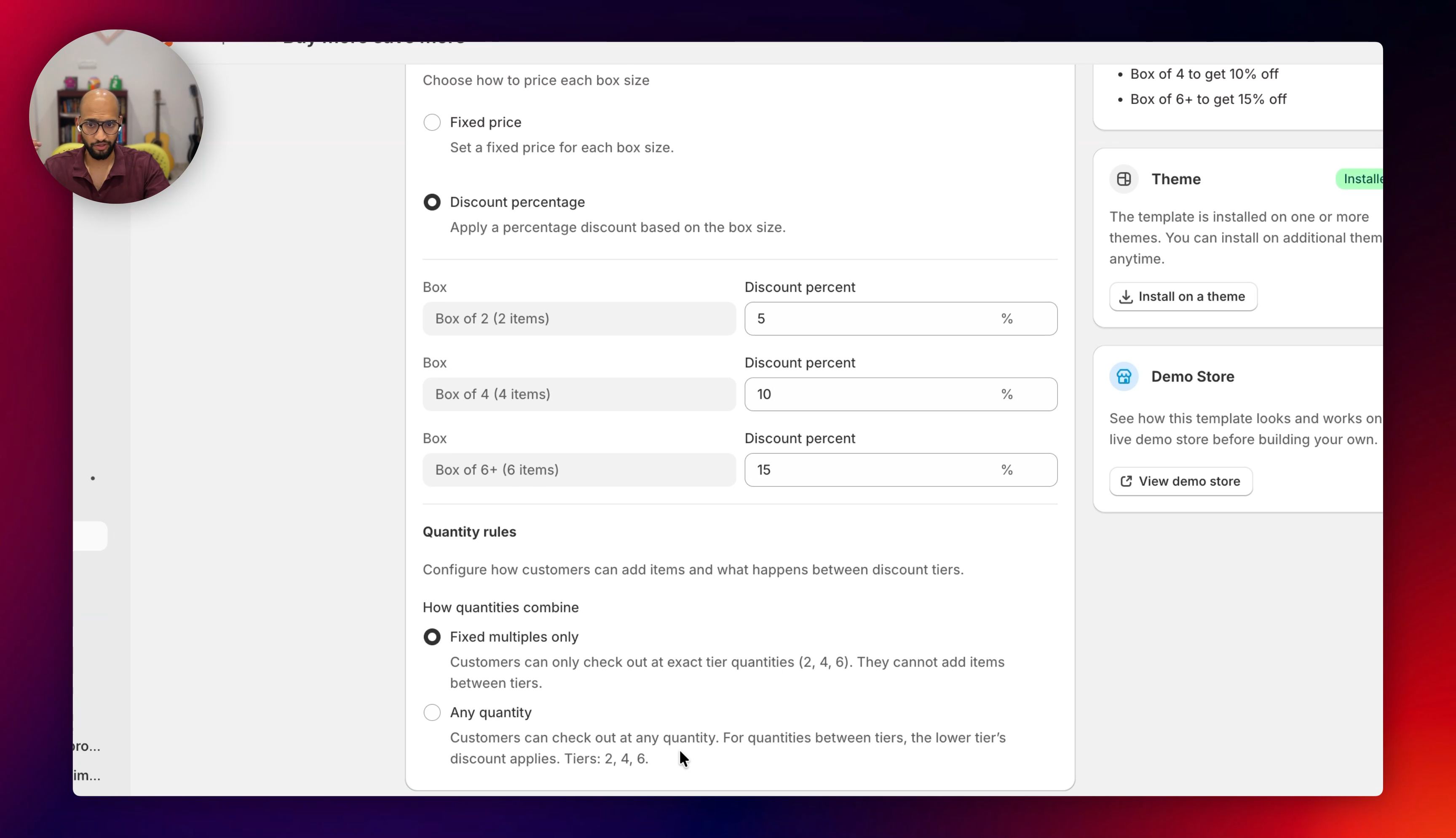
- Add your box options, such as Box of 2, Box of 4, and Box of 6+.
- Choose a pricing strategy:
- Fixed price
- Discount percentage
- If you choose Discount percentage, enter the discount for each box option.
- Choose your quantity rules.
- Add the product categories shoppers can choose from.
- Optional: add products that should be included automatically or shown as add-ons.
For example, you can create a cosmetics bundle where customers choose concealers, foundations, and blushes, then receive a larger discount as they add more items.
Step 4: Save the bundle and open the Shopify product
- Review the bundle summary.
- Click Save.
- After the bundle is saved, FoxSell creates a Shopify product for the bundle.
- Click View Bundle in Shopify Admin.
The generated Shopify product acts as the storefront landing page for this bundle.
Step 5: Assign the bundle product template
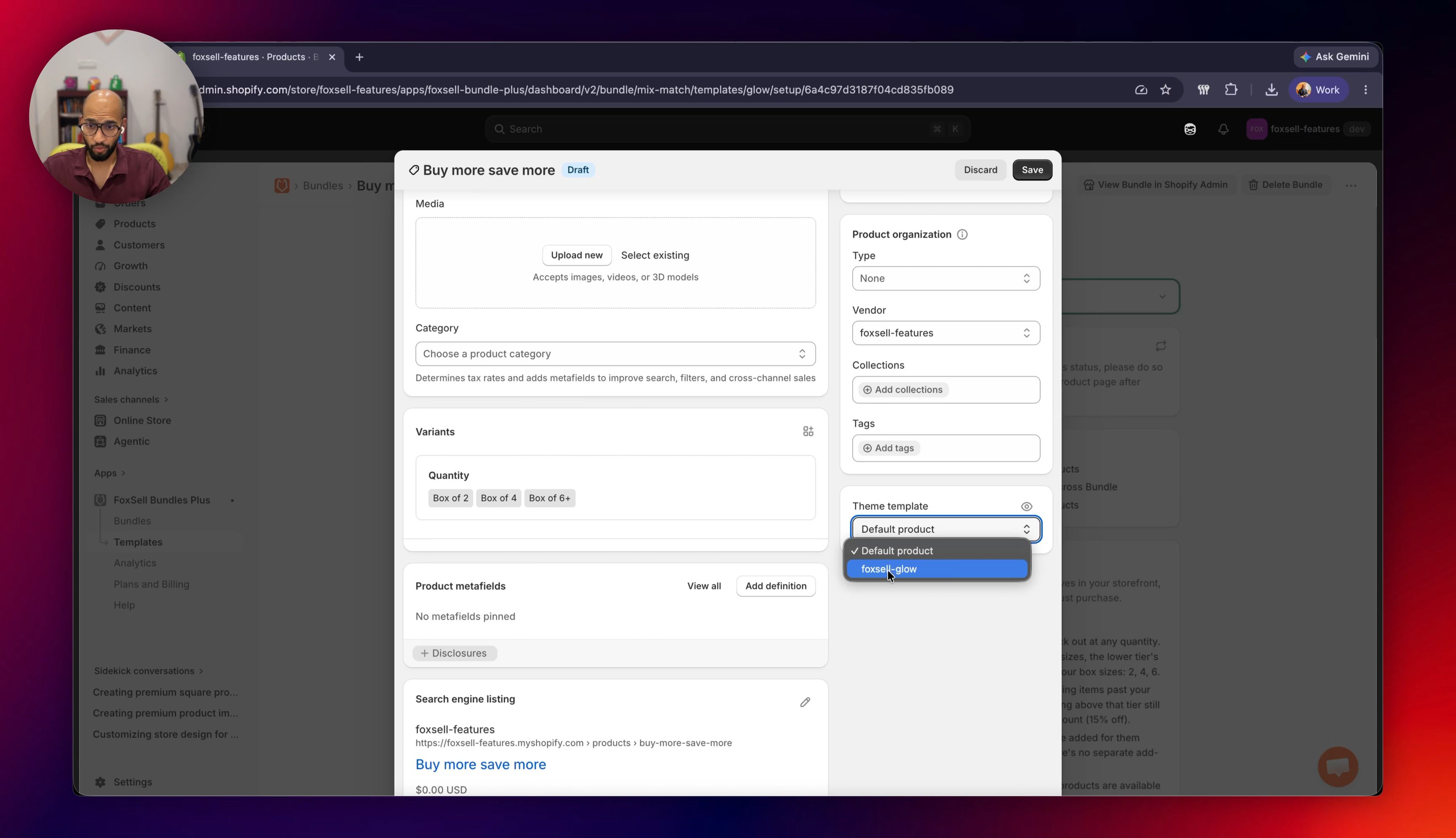
- In Shopify admin, open the bundle product that FoxSell created.
- Set the product status to Active.
- Add product images if needed.
- In the Theme template setting, choose the template installed by FoxSell.
- Click Save.
Step 6: Test the storefront experience
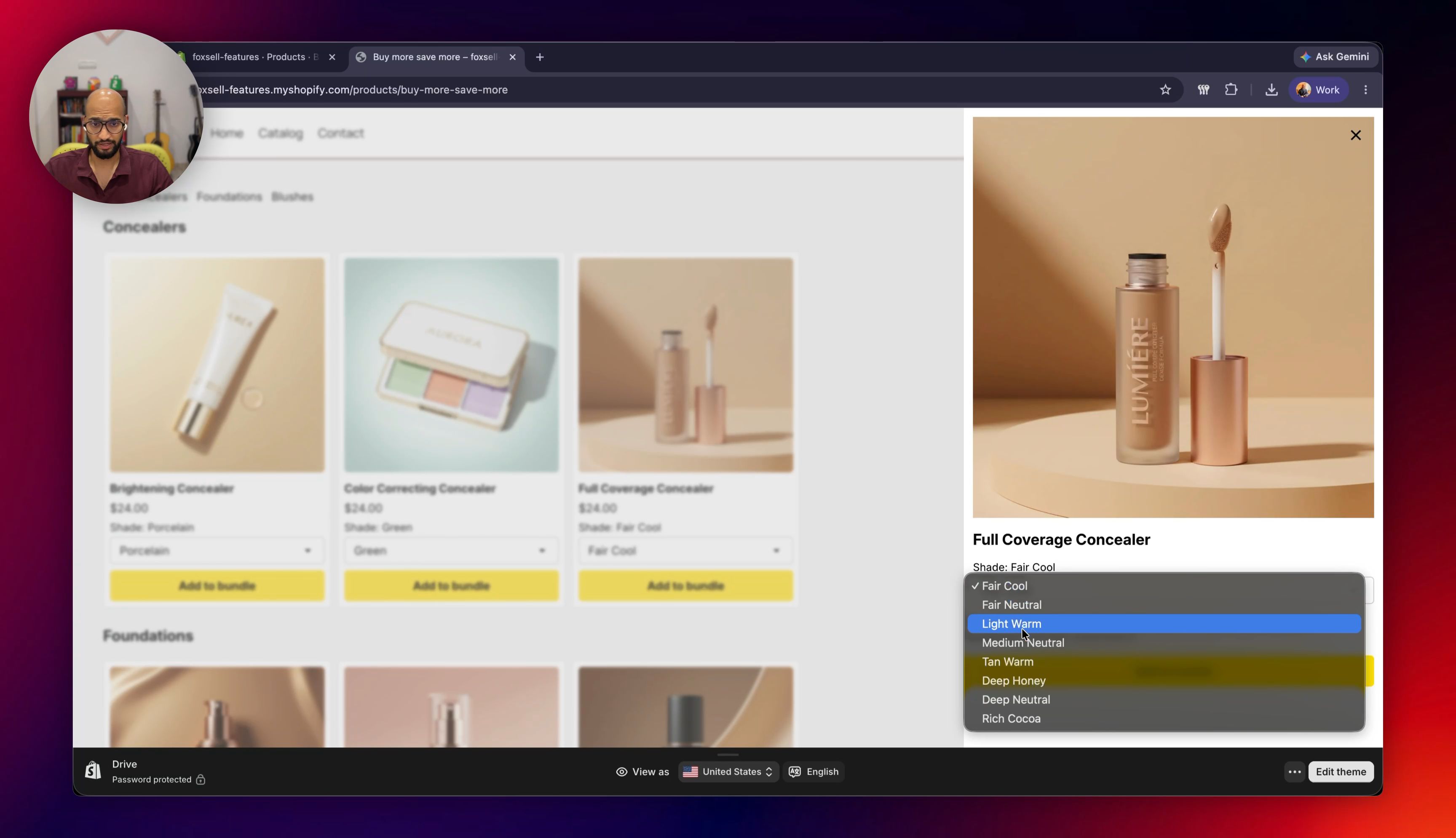
Open the bundle product on your storefront and confirm:
- The Tiered Bundle Builder appears on the product page.
- Customers can choose products and variants.
- The box options and discounts appear correctly.
- Add-ons or automatically included items behave as expected.
- The Add to Cart button becomes available when the bundle is ready.
Step 7: Test the checkout experience
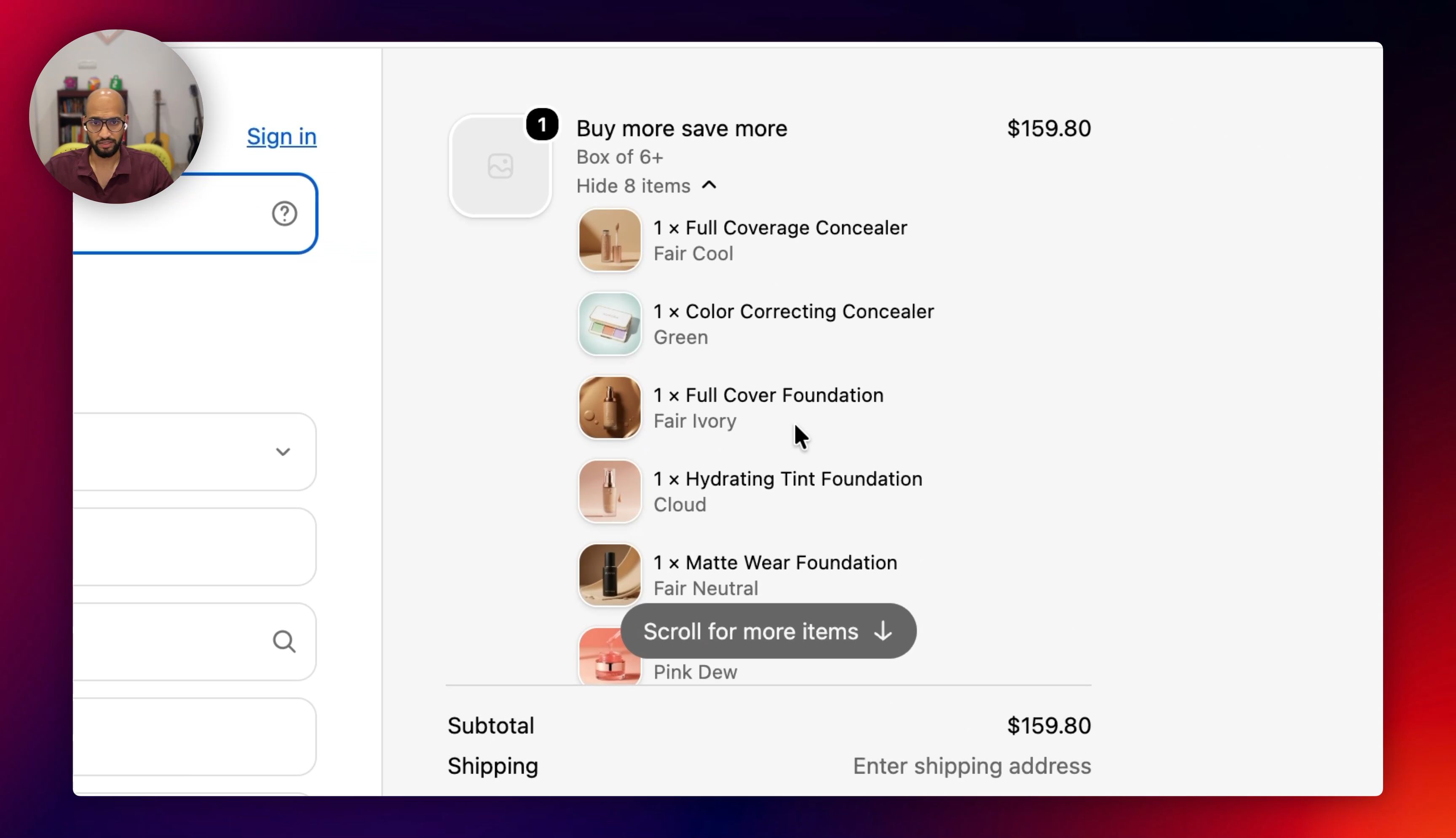
Add a completed bundle to cart and continue to checkout.
Confirm that the checkout shows the bundle product and the selected bundle items together.
Optional: Add the section to another product template
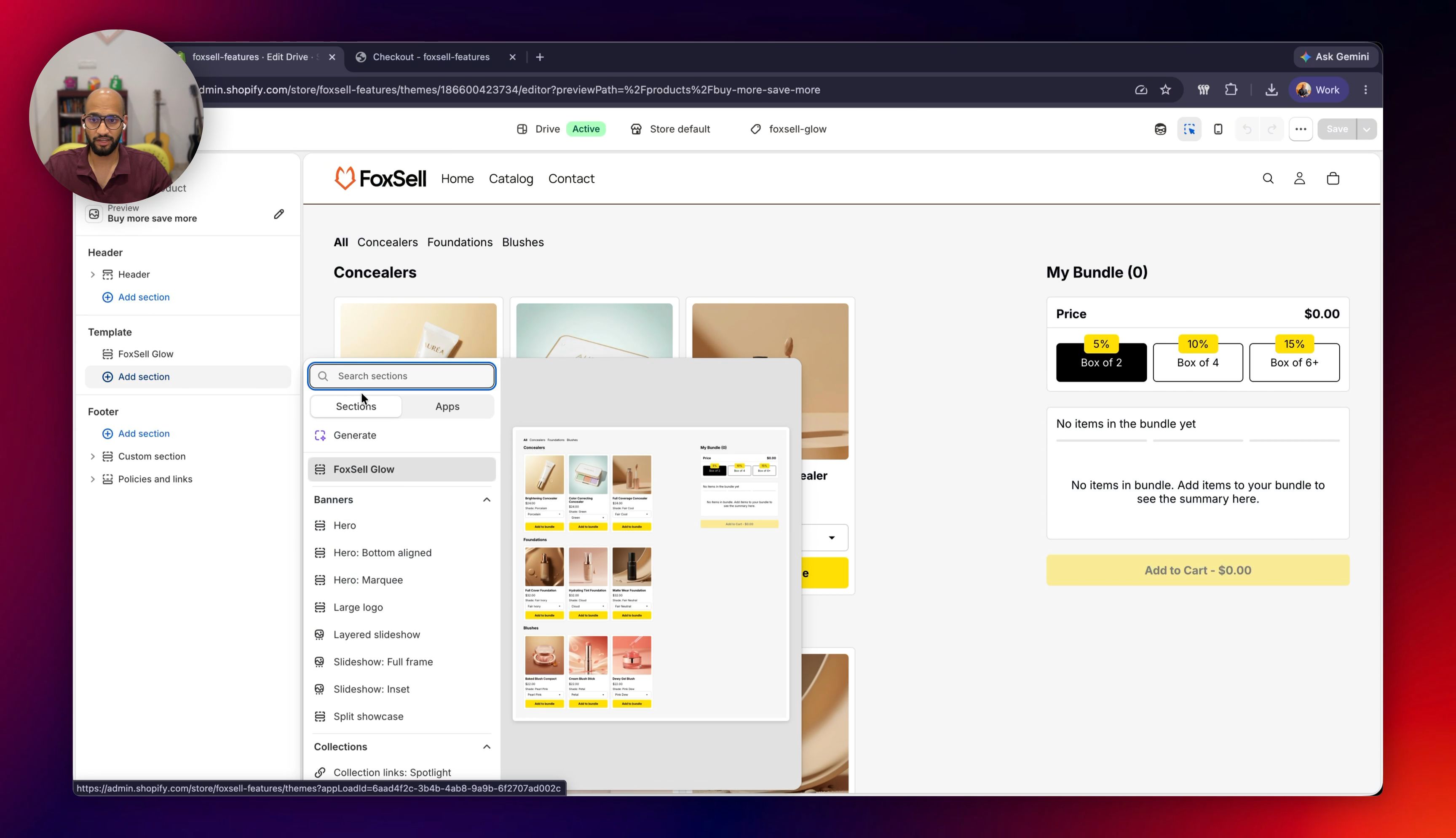
If you do not want to use the pre-built template, you can add the Tiered Bundle Builder section to another compatible product template.
- In Shopify admin, go to Online Store > Themes.
- Click Customize on the theme you installed the template on.
- Open the product template where you want the bundle builder to appear.
- Click Add section.
- Search for and select FoxSell Glow.
- Save the theme.
Optional: Customize the storefront section
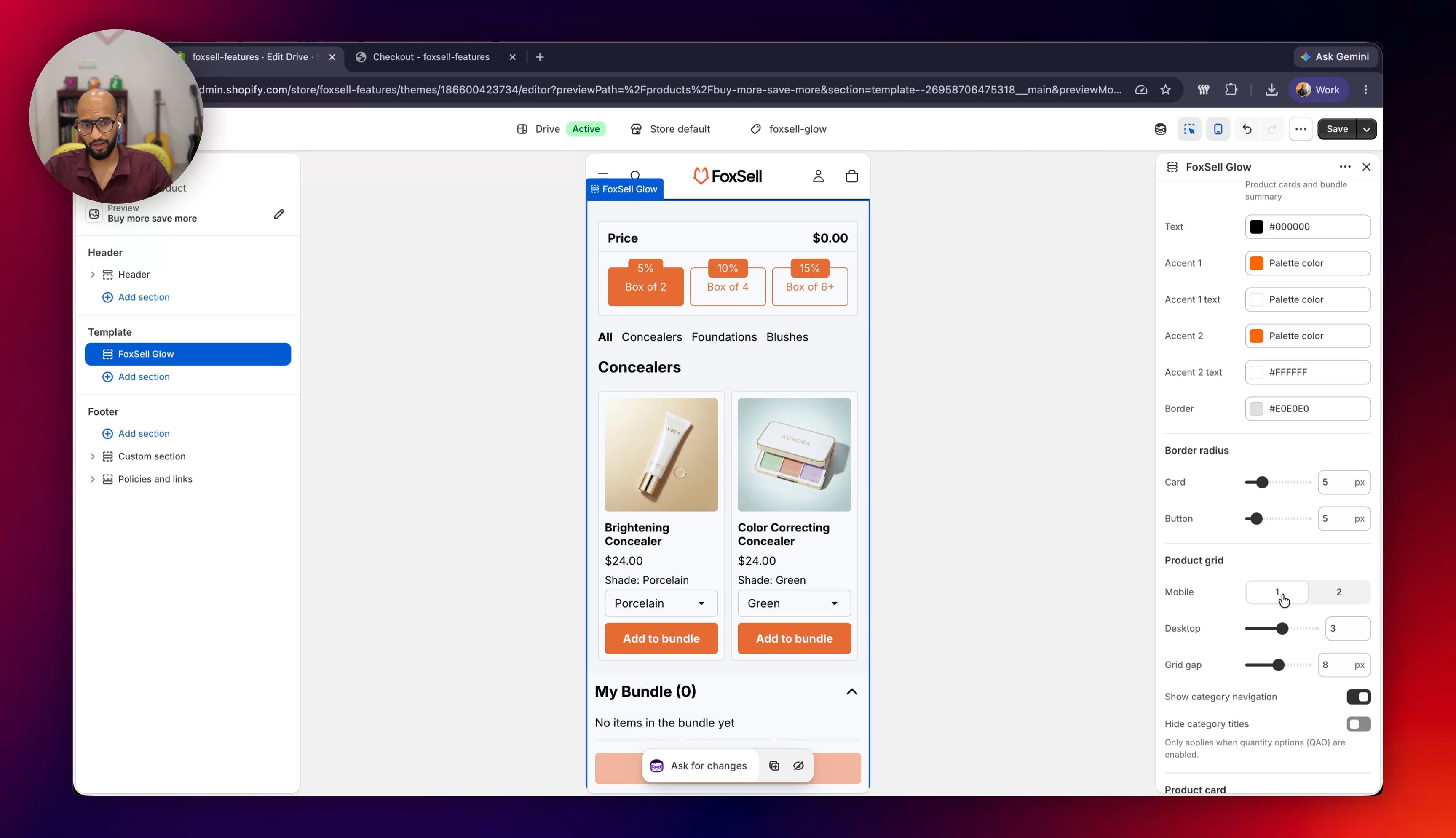
You can customize the FoxSell Glow section from the Shopify theme editor.
Common settings include:
- Section padding
- Wrapper class
- Brand colors
- Number of products shown on mobile and desktop
- Category navigation
- Variant selector style
- Color swatches
- Display text
If you face any issues, message us from the in-app chat or email support@foxsell.app. We can help get the setup completed.
Updated on: 08/07/2026
Thank you!